If your PC feels slow or you’re getting poor frame rates in games, your Windows system settings might be holding it back. In some cases, a few simple tweaks can noticeably improve performance. Below are several easy adjustments you can make to help your system run faster.

Step 1: Adjust processor settings
- Type msconfig into the Windows search bar and select the result.
- The System Configuration window will open. Click the Boot tab.
- Select Advanced options.
- In the pop-up window, check the box labeled Number of processors.
- Use the drop-down menu to select the maximum number available.
- Click OK, then Apply, and OK again.
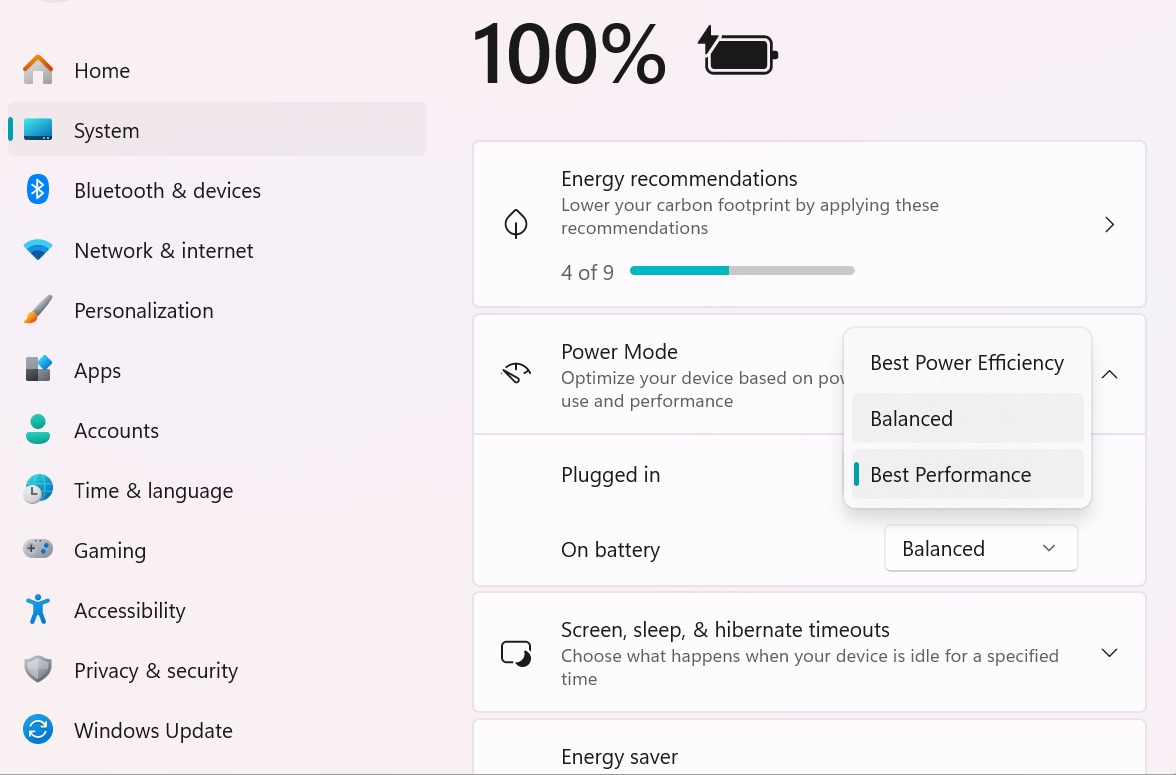
Step 2: Change power mode settings
- Type Power into the search bar and open Power, Sleep, and Battery settings.
- Under Power mode, use the drop-down menu to switch from Balanced to Best performance for both Plugged in and On battery.
- Close the settings window once you’re done.
Step 3: Disable unnecessary startup apps
- Type Task Manager into the search bar and open it.
- Go to the Startup apps tab.
- Find apps you don’t need to launch when Windows starts.
- Right-click each one and select Disable.
- Restart your PC.
Note: Disabling startup apps doesn’t remove them from your system. You can still use them normally — they just won’t open automatically when your PC boots.
After completing these steps, your system should feel more responsive and deliver better performance. Now’s a good time to put that extra speed to use — especially for gaming.